Configuring StaffPulse
Set up employees, locations, and roles in StaffPulse Settings before you start creating shifts.
Before creating your first shift, you need to configure StaffPulse with the correct employee assignments. This tells the system which providers work at which locations and in what roles.
Accessing StaffPulse Settings
In the StaffPulse module, click Settings in the top navigation bar.
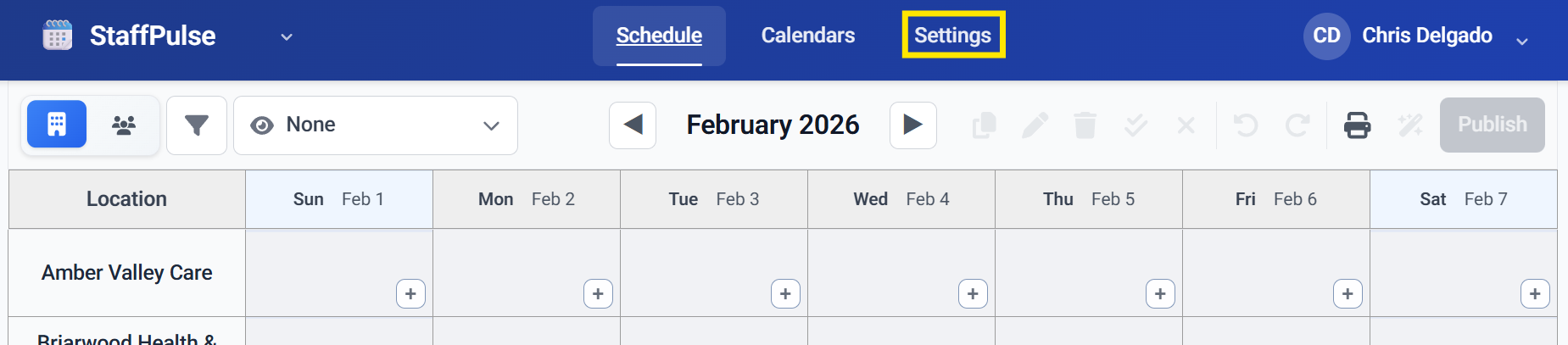
The Settings page has three tabs: Employees, Locations, and Roles.
Employees Tab
The Employees tab lists all team members in your organization. Here you configure each employee's scheduling profile.
Click Edit next to an employee to open the Edit Employee dialog:
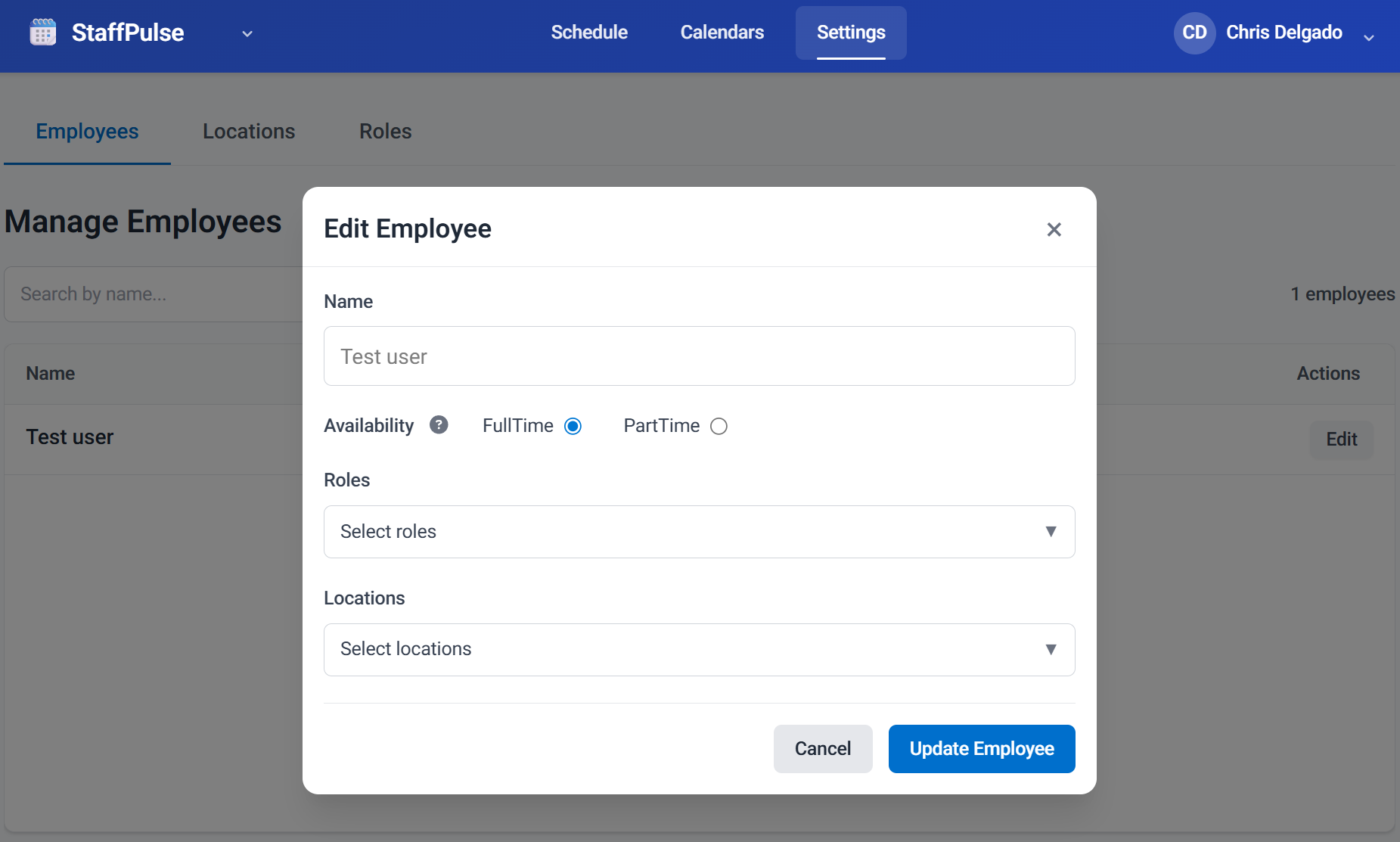
Availability
- FullTime — the employee is available for full-time scheduling
- PartTime — the employee has limited availability
Roles
Select one or more roles that this employee can fill. Employees can have multiple roles — for example, a provider might hold both "Physician" and "Medical Director" roles. These roles determine which shifts the employee is eligible for.
Locations
Select the locations where this employee regularly works.
Important: Only assign employees to locations where they actually work on a regular basis. This is critical for the Auto-Assign feature, which uses location assignments to determine scheduling eligibility. You can always manually assign any employee to any location when creating a shift, but auto-assign relies on these assignments to work correctly. Do not assign everyone to every location — this will produce poor auto-assign results.
Click Update Employee to save the changes.
Locations Tab
Manage the locations (facilities) available for scheduling. You can:
- Add new locations
- Edit existing location names
- Delete locations that are no longer active
Roles Tab
Manage the provider roles used in your organization. You can:
- Add new roles (e.g., "Physician", "NP/PA", "Medical Director")
- Edit existing role names
- Delete roles that are no longer needed
Roles you create here are the same roles you assign to employees and shifts. Make sure they accurately represent the distinct provider types in your organization.