
Employee Calendars
View individual provider schedules and connect them to Google Calendar, Outlook, or Apple Calendar.
The Calendars page gives you a calendar view of each provider's schedule, and lets them sync their shifts to external calendar apps.
Accessing Employee Calendars
- Click Calendars in the top bar
- Click the Employees tab
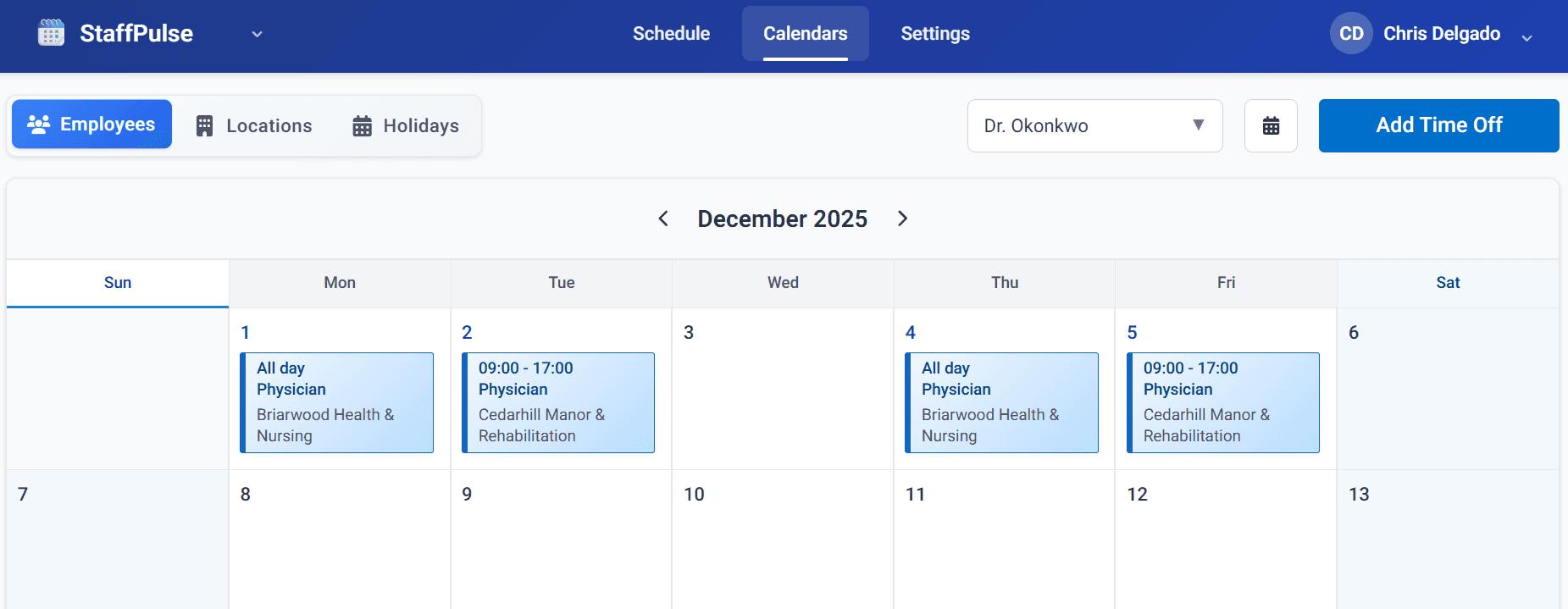
Use the employee dropdown in the top-right to select which provider's calendar to view. The calendar shows all their assigned shifts for the month, including:
- Shift time (e.g., "All day" or "09:00 - 17:00")
- Role (e.g., "Physician")
- Location (e.g., "Briarwood Health & Nursing")
Use the arrow buttons to navigate between months.
Connecting to External Calendar Apps
Providers can sync their ClinicShifts schedule to their preferred calendar app — Google Calendar, Microsoft Outlook, Apple Calendar, or any app that supports iCal/ICS feeds.
To connect a calendar:
- On the Calendars page, select the employee
- Click the calendar icon button next to the employee dropdown

- Copy the provided subscription URL
- Add it as a calendar subscription in the provider's calendar app
Calendar subscriptions are read-only — providers can view their shifts but cannot edit them from their calendar app. The calendar automatically updates whenever the schedule changes, so shifts are always current.
Who Can Access Employee Calendars
- Admins can view any employee's calendar from the Calendars page
- Providers (Users) can view their own calendar and see their shifts
- External calendar sync shows only the specific provider's published shifts