
Managing Time Off
Add PTO and time off for providers, and see how it integrates with scheduling and conflict detection.
ClinicShifts lets you track provider time off directly in the system, so it integrates seamlessly with your scheduling workflow, including visual warnings on conflicting shifts.
Adding Time Off
- Click Calendars in the top bar, then the Employees tab
- Select the employee from the dropdown
- Click Add Time Off in the top-right corner
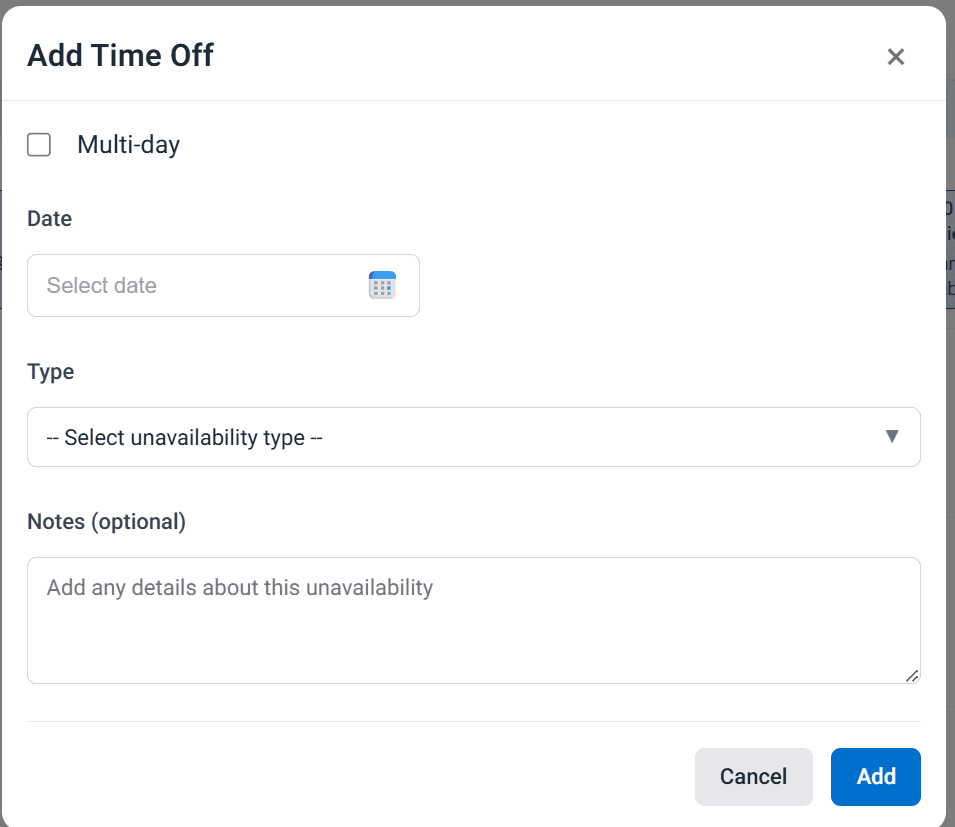
Time Off Fields
- Multi-day — check this box if the time off spans multiple days, then select a date range
- Date — the date of the time off (for single-day entries)
- Type — select the type of unavailability from the dropdown
- Notes (optional) — add context about the time off (e.g., "Family vacation", "Medical conference")
Click Add to save the time off entry.
How Time Off Appears in the System
Time off is visible in multiple places throughout ClinicShifts:
Employee Calendar
Time off entries appear directly on the employee's calendar view, alongside their scheduled shifts.
Schedule View
When building the schedule, time off is factored into the Assigned To dropdown. If a provider has time off on a specific date, they will appear highlighted in red under a Conflicts section with a "(PTO)" label:
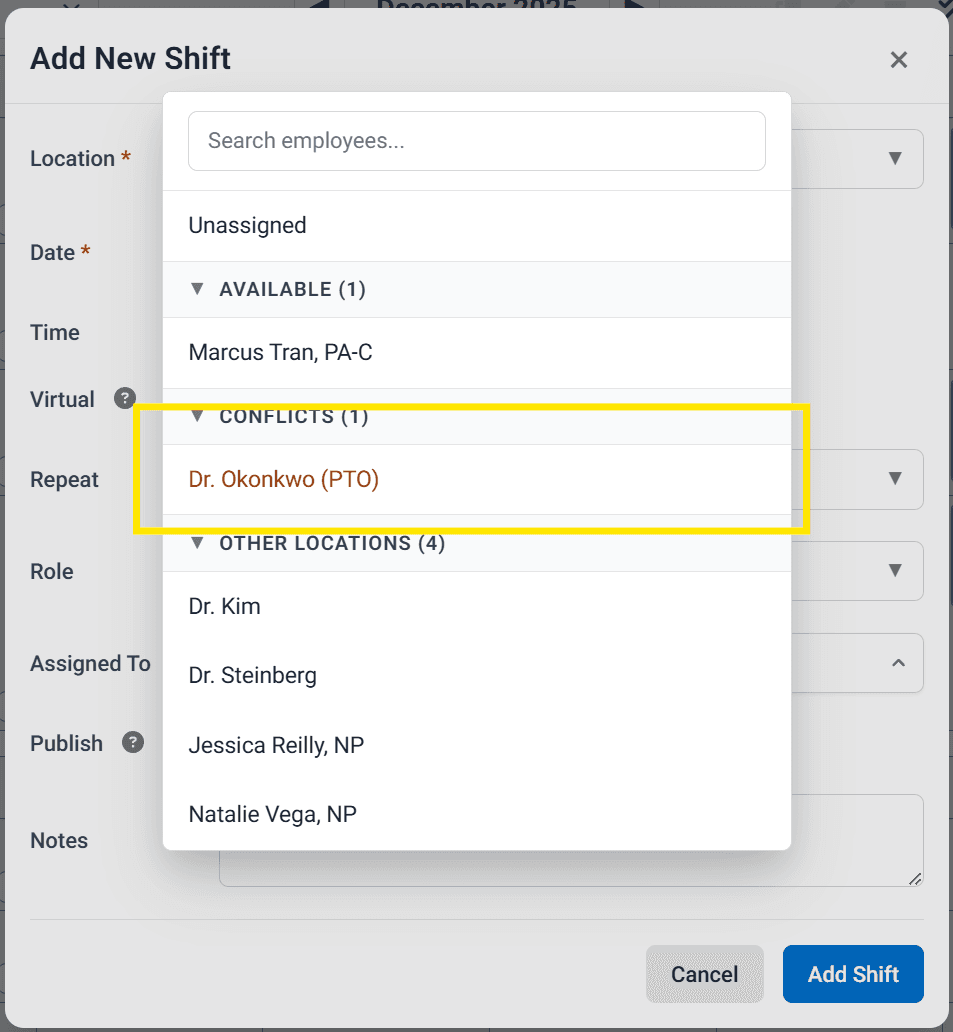
This immediately tells you that the provider is unavailable, so you can choose someone else.
Conflict Warnings
If you assign a provider to a shift on a date when they have time off, the system will generate a warning on the shift card. This doesn't prevent the assignment — it just alerts you to the conflict.
Editing and Removing Time Off
From the employee's calendar view, you can click on an existing time off entry to edit or delete it.