
Location Calendars & Sharing
View per-location schedules, create shareable links for facility managers, and set up email subscriptions for schedule updates.
Location calendars let you see the complete schedule for a specific facility, and share it with external stakeholders like facility managers — no login required.
Viewing Location Calendars
- Click Calendars in the top bar
- Click the Locations tab
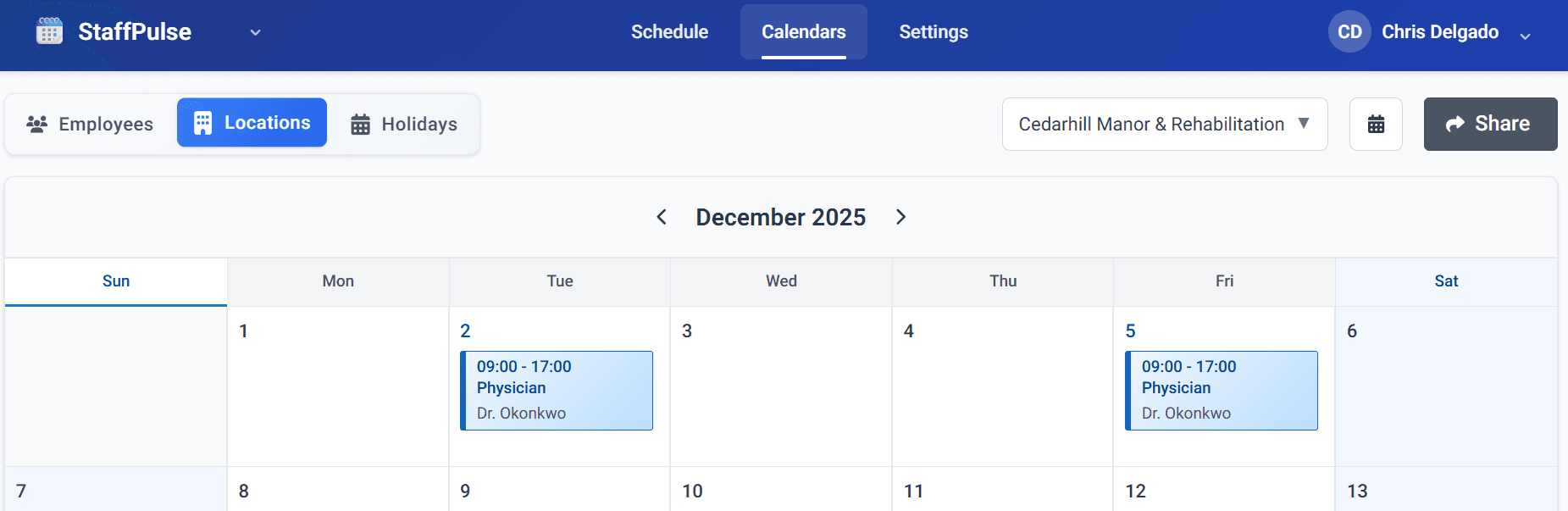
Use the location dropdown in the top-right to select which facility to view. The calendar shows all shifts at that location, including provider names, roles, and times.
You can also click the calendar icon next to the location dropdown to add this location's schedule to Outlook or Google Calendar via an iCal subscription URL.
Sharing Location Calendars
The Share feature creates a public link that anyone can use to view a location's schedule — no ClinicShifts account required. This is perfect for facility managers, front-desk staff, or facility coordinators who need to know which providers are on-site.
Creating a Shared Link
- On the Locations calendar page, click the Share button
- Select one or more locations to include in the shared link
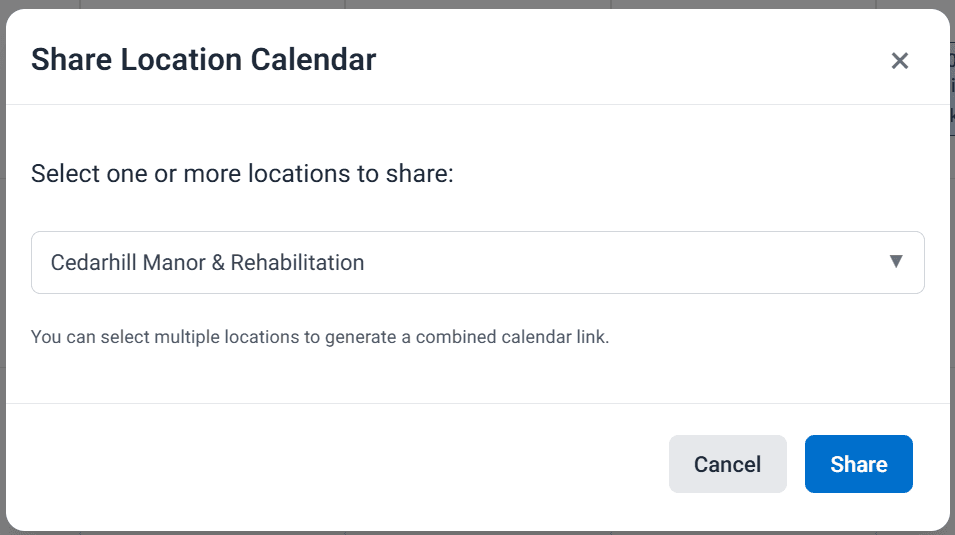
You can select multiple locations to generate a combined calendar link.
- Click Share to generate the link
- Copy and send the link to your facility contacts
What Facility Managers See
Anyone with the shared link can view the location schedule in a clean, branded calendar view:
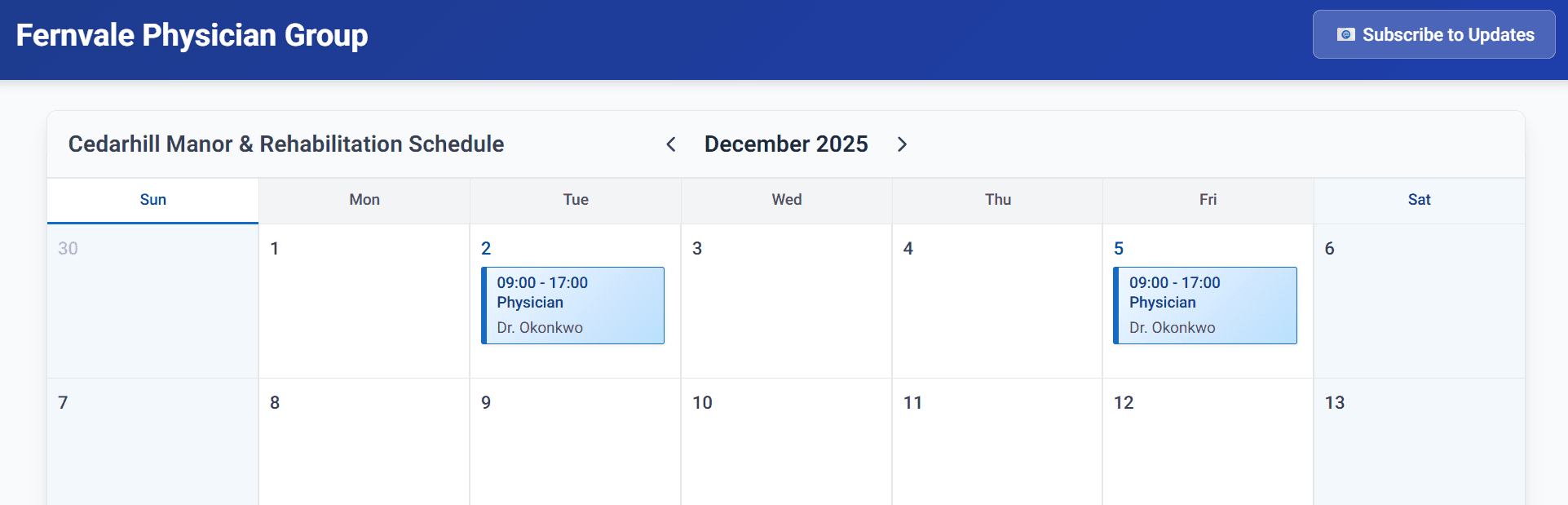
The shared view shows:
- Your organization name in the header
- The location name and schedule
- All published shifts with provider names, roles, and times
Only published shifts appear on shared calendars. Draft shifts are not visible to external viewers.
Subscribing to Updates
On the shared calendar page, facility managers (or anyone viewing it) can click Subscribe to Updates and enter their email address. They will then receive automatic email notifications whenever:
- New shifts are published for that location
- Existing published shifts are modified
- Published shifts are deleted
Changes made in one editing session are batched into a single email:
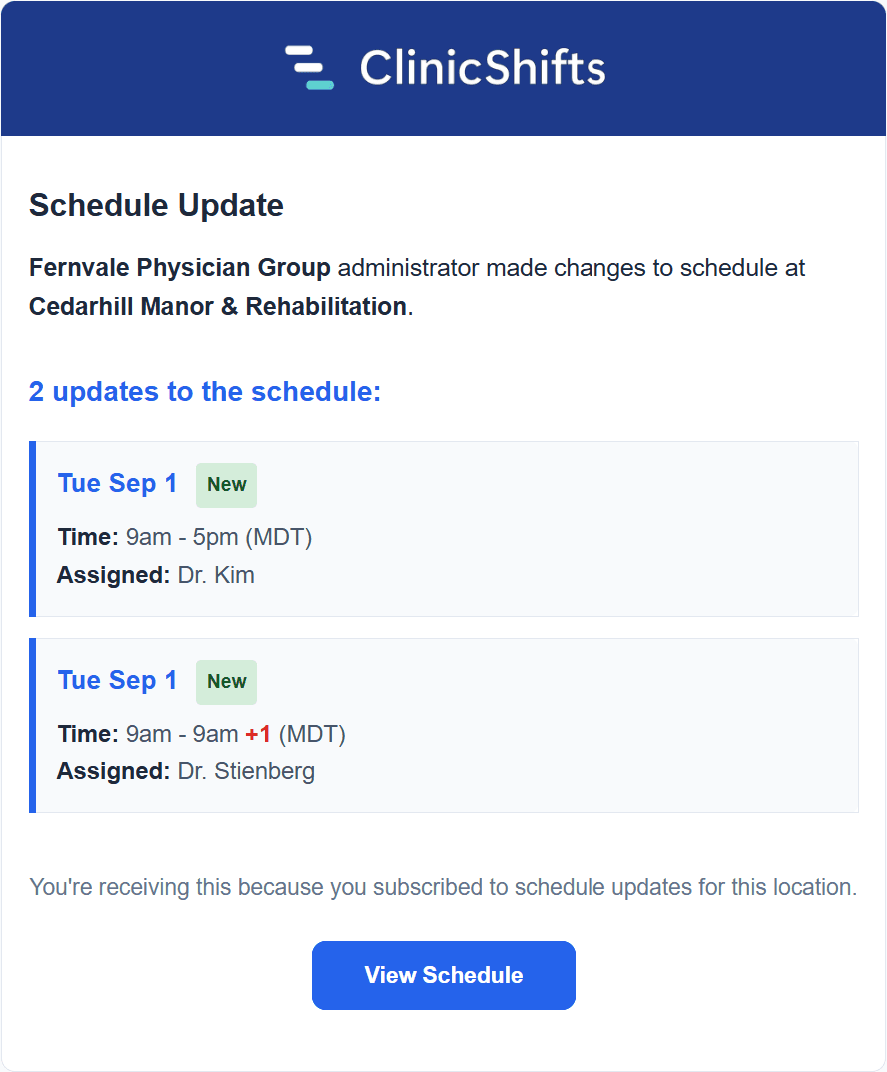
To unsubscribe, there is an unsubscribe link at the bottom of every notification email.
For email notifications to work, Send shift email notifications must be enabled in Organization Settings.