
Managing Shifts
Select, copy, bulk edit, delete, drag and drop, undo, and redo shifts on your schedule.
Once shifts are on your schedule, ClinicShifts provides powerful tools to manage them efficiently — from selecting and bulk editing to drag-and-drop rearrangement.
Selecting Shifts
Hover over any shift card to reveal two action buttons:
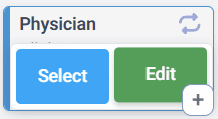
- Select — adds the shift to your current selection
- Edit — opens the shift edit dialog
Selected shifts get a purple outline to indicate they are part of the current selection:
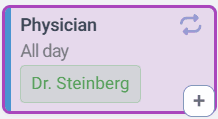
You can select multiple shifts across different dates and locations.
Operations Panel
When you have shifts selected (or need to perform schedule-wide actions), use the operations panel in the top-right corner of the schedule page:
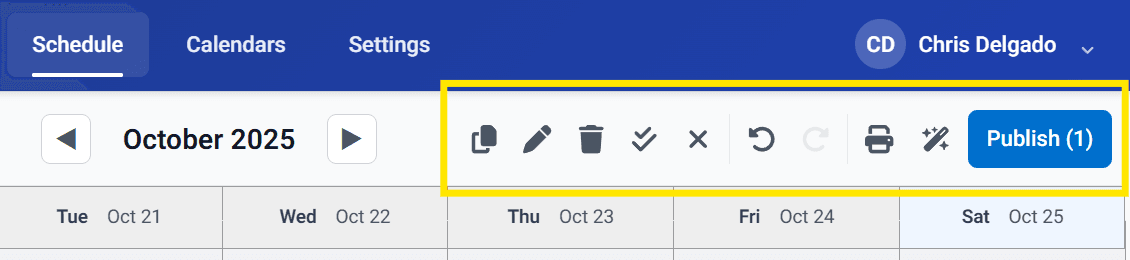
The buttons from left to right:
| Button | Action | Description |
|---|---|---|
| Copy | Copy | Duplicate the selected shifts |
| Pencil | Bulk Edit | Edit multiple selected shifts at once |
| Trash | Delete | Delete the selected shifts |
| Double Check | Select All | Select all shifts currently visible on screen |
| X | Deselect All | Clear the current selection |
| Undo | Undo | Undo your last shift change |
| Redo | Redo | Redo the last undone change |
| Printer | Print the current schedule | |
| Publish | Publish | Publish selected shifts (or all visible shifts if none selected) |
Drag and Drop
Shift cards can be dragged and dropped to quickly reschedule them:
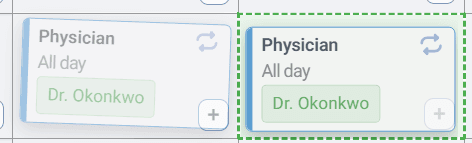
In By Location view, you can drag shifts to:
- A different date (move to another day)
- A different location (reassign the facility)
In By Employee view, you can drag shifts to:
- A different date
- A different employee (reassign the provider)
A ghost preview of the shift appears at the drop target so you can confirm the placement before releasing.
Undo and Redo
Made a mistake? Use the Undo and Redo buttons in the operations panel to quickly reverse or reapply your last changes. This works for creating, editing, deleting, and moving shifts.
Bulk Editing
To edit multiple shifts at once:
- Select the shifts you want to change (use individual selection or Select All)
- Click the Bulk Edit (pencil) button in the operations panel
- Apply changes — such as updating the role, time, or assigned provider — to all selected shifts at once
This is especially useful when you need to make the same change across many shifts, such as reassigning a provider for an entire week.