
Holiday Calendar
Create and manage organization-wide holidays that appear on your schedule and calendars.
The Holiday Calendar lets you define organization-wide holidays that are displayed across your schedule and calendar views, helping your team plan around days off.
Accessing the Holiday Calendar
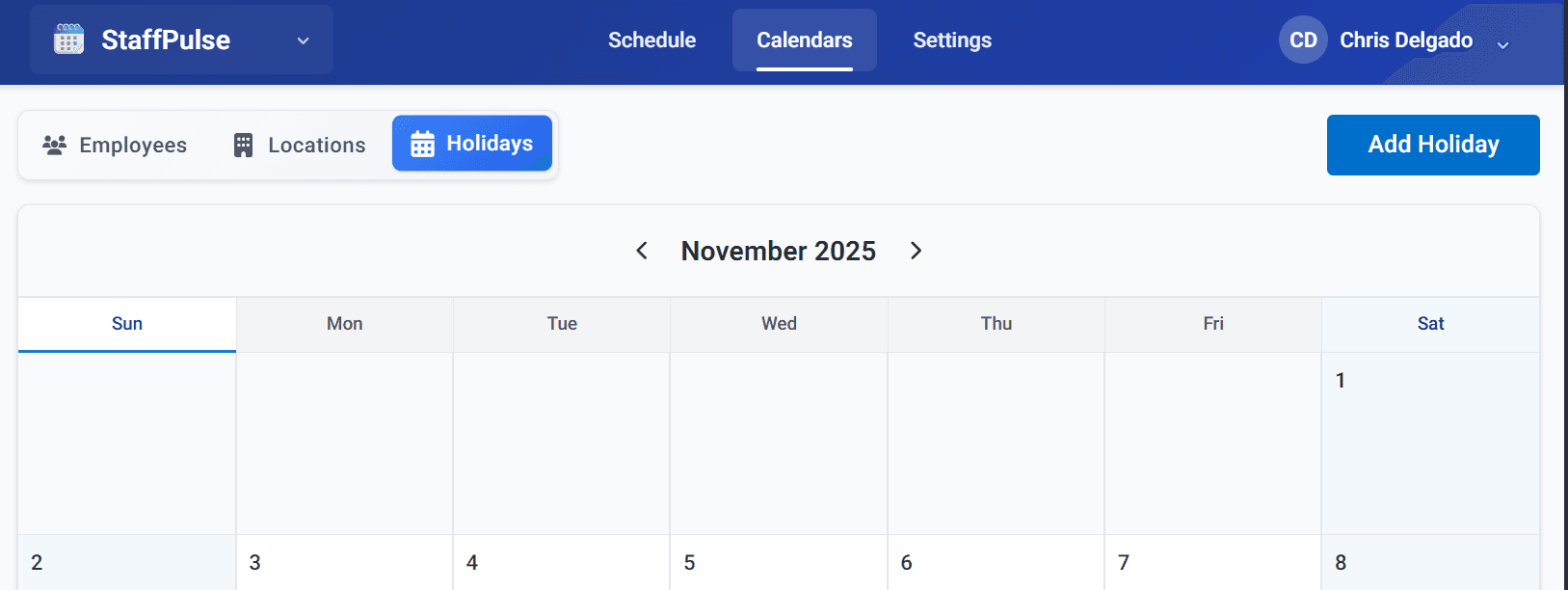
- Click Calendars in the top bar
- Click the Holidays tab
Adding a Holiday
- Click the Add Holiday button in the top-right corner
- Enter the holiday details:
- Name — the holiday name (e.g., "Thanksgiving", "Christmas Day", "New Year's Day")
- Date — the date of the holiday
- Save the holiday
How Holidays Appear
On the Schedule
Holidays are displayed as a banner across the date column on the schedule grid, so your team can see at a glance which dates are holidays:
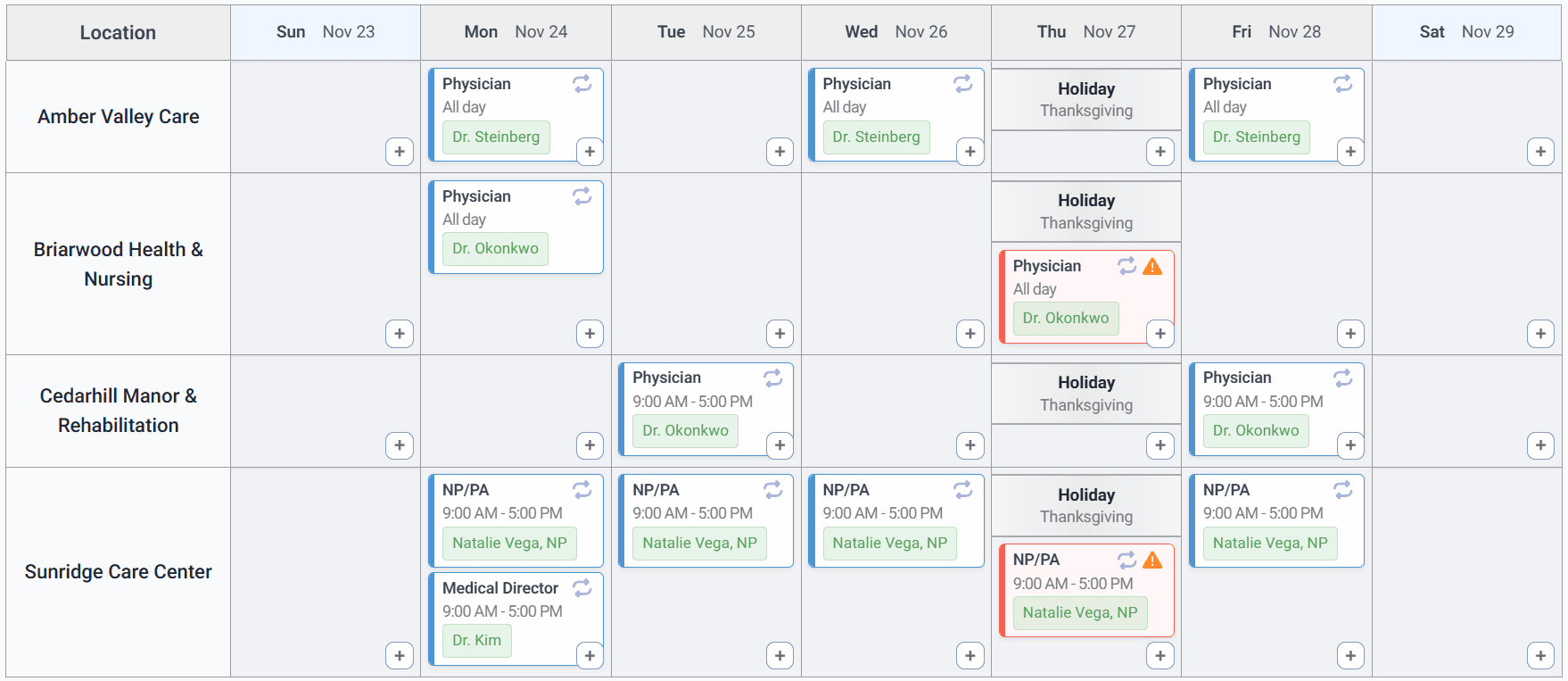
Holidays do not prevent you from creating or assigning shifts. Some medical practices need coverage on holidays, so the system remains flexible — the holiday label simply provides visual context.
On Calendars
Holidays appear on both employee and location calendars, as well as in printed schedules (if the Holidays display option is enabled).
On Printed Schedules
When printing a schedule, you can choose to show or hide holidays using the Holidays display toggle.
Editing and Deleting Holidays
Click on any existing holiday in the calendar to edit its name or date, or to delete it entirely.
Holidays are organization-wide — they apply to all locations and all employees in your organization.