
Scheduling
Printing Schedules
Generate a printable version of your schedule with customizable date ranges, views, and display options.
ClinicShifts lets you print a clean, formatted version of your schedule for posting at facilities, sharing in meetings, or keeping as a paper backup.
Opening the Print Dialog
Click the Print button (printer icon) in the top-right operations panel on the Schedule page.
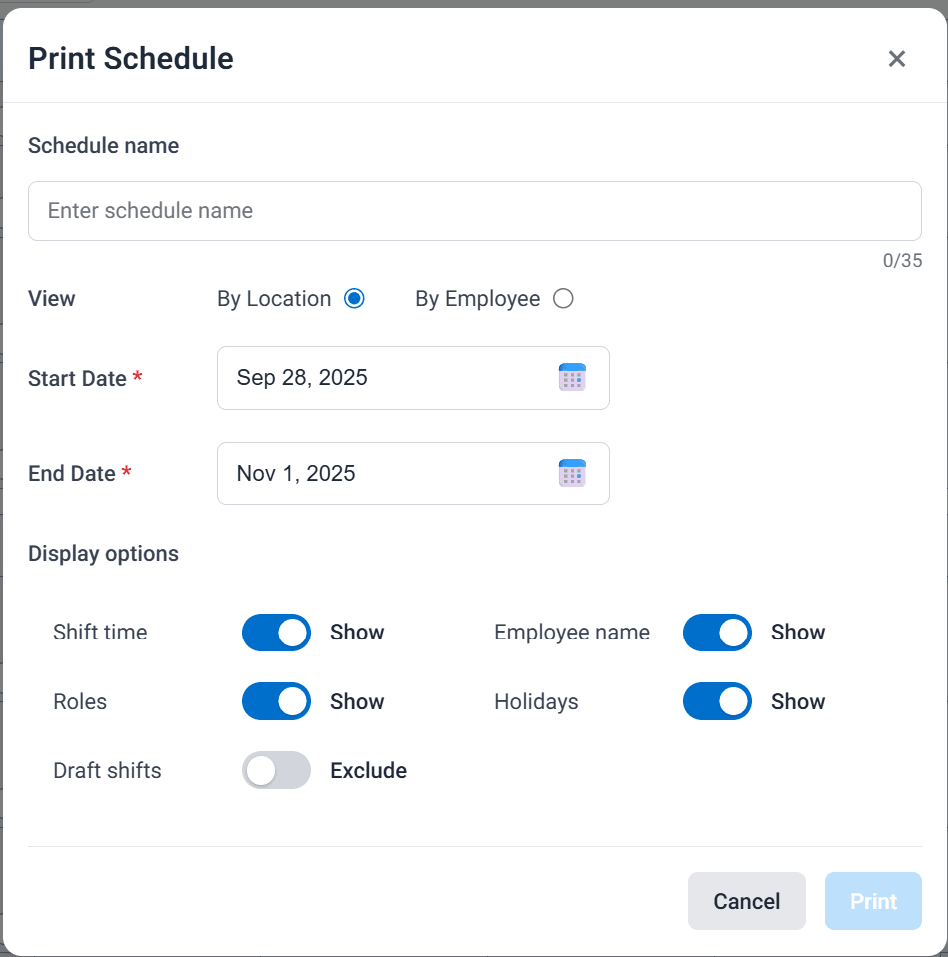
Print Options
Schedule Name
Give the printed schedule a title (e.g., "November Schedule", "Week 1 Coverage"). This appears at the top of the printed page.
View
Choose how the schedule is organized:
- By Location — groups shifts by facility, with provider names on each shift
- By Employee — groups shifts by provider, with location names on each shift
Date Range
- Start Date — the first date to include in the printout
- End Date — the last date to include
Display Options
Toggle what information appears on the printed schedule:
| Option | Show | Hide |
|---|---|---|
| Shift time | Display shift times on each card | Hide times |
| Employee name | Display assigned provider names | Hide names |
| Roles | Display role labels on shifts | Hide roles |
| Holidays | Show holidays on the calendar | Hide holidays |
| Draft shifts | Include draft (unpublished) shifts | Exclude drafts (show only published) |
Printed Output
Click Print to generate the schedule. A formatted, printer-friendly view opens that you can print or save as a PDF.
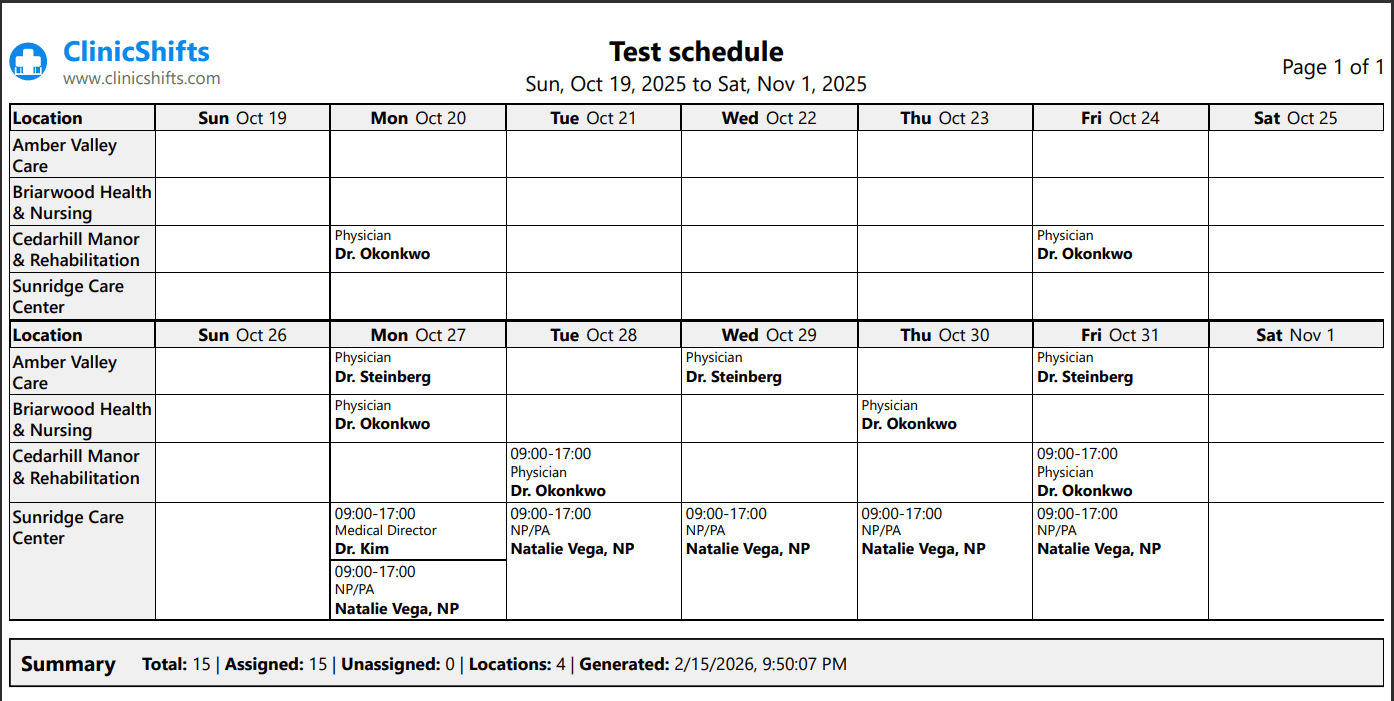
The printed schedule includes:
- A header with your organization name, schedule title, and date range
- A grid organized by your chosen view (location or employee)
- A summary row at the bottom with totals: total shifts, assigned shifts, unassigned shifts, locations count, and the generation timestamp