
Creating Shifts
Learn how to create individual and recurring shifts, assign providers, and configure all shift options.
Shifts are the building blocks of your schedule. Each shift represents a time block at a specific location that needs a provider.
The Schedule Grid
The schedule page shows a monthly calendar grid. In the default By Location view, locations are listed on the left and dates across the top.
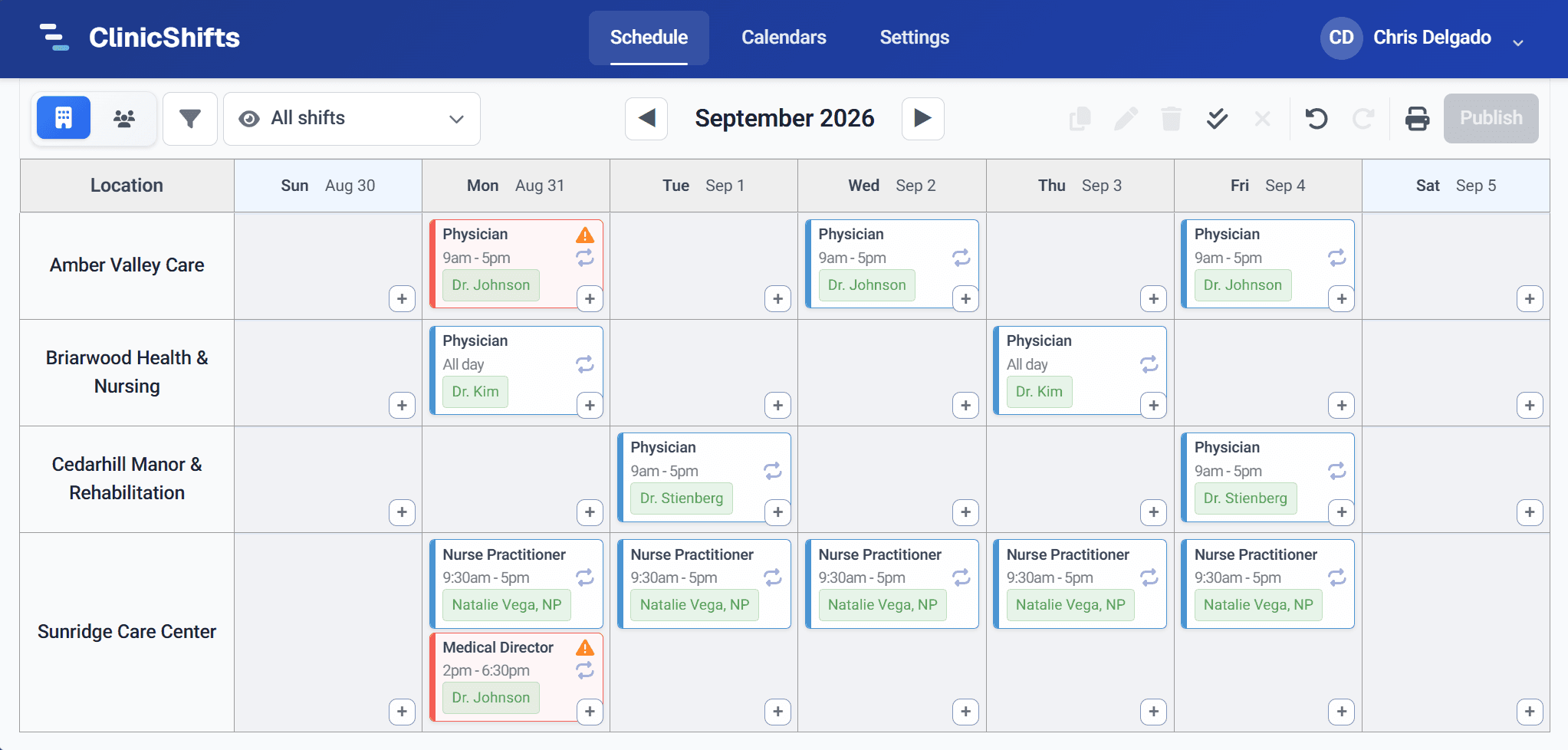
To create a new shift, click the (+) button on any date cell in the grid.
Add New Shift Dialog
Clicking (+) opens the Add New Shift dialog with the following fields:
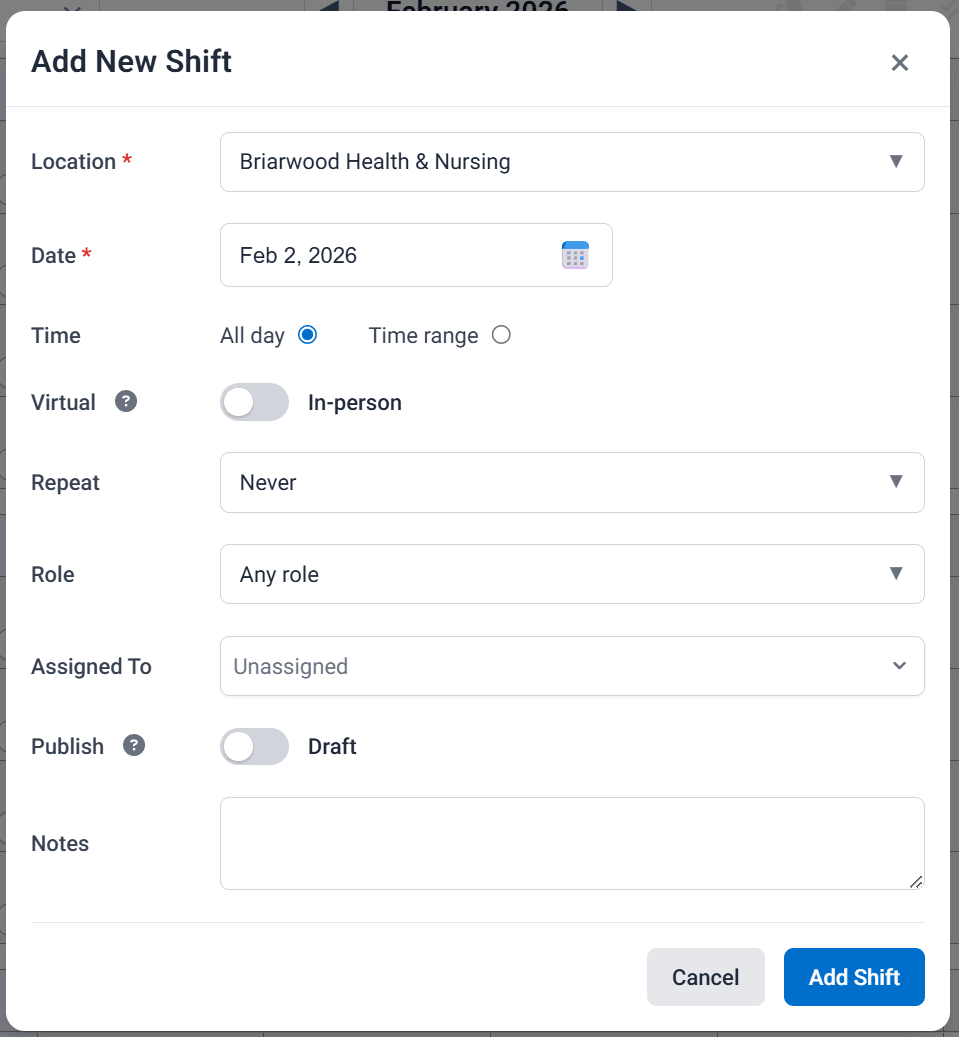
Location
Select the facility where this shift takes place. If you clicked (+) from a specific location row, it will be pre-selected.
Date
The date for this shift. Pre-filled based on where you clicked in the grid.
Time
Choose between two options:
- All day — the provider is expected to work the full day at this location, without specifying exact hours
- Time range — specify a start and end time for the shift (e.g., 9:00 AM – 5:00 PM)
Note: Overnight shifts (shifts that span midnight) are not currently supported.
Virtual
Toggle between In-person and Virtual:
- In-person shifts participate in conflict detection — if a provider is assigned to two overlapping in-person shifts, a warning will appear
- Virtual shifts do not trigger conflict warnings, even if they overlap with other shifts — ideal for on-call support or telehealth coverage
Repeat
Control whether this shift repeats:
- Never — creates a single one-time shift
- This week — creates a shift for specific days within the current week
- Every week — creates a recurring weekly shift series
- Every 2 weeks — creates a biweekly recurring series
- Every 3 weeks — creates a tri-weekly recurring series
When you select a repeating option, additional fields appear:
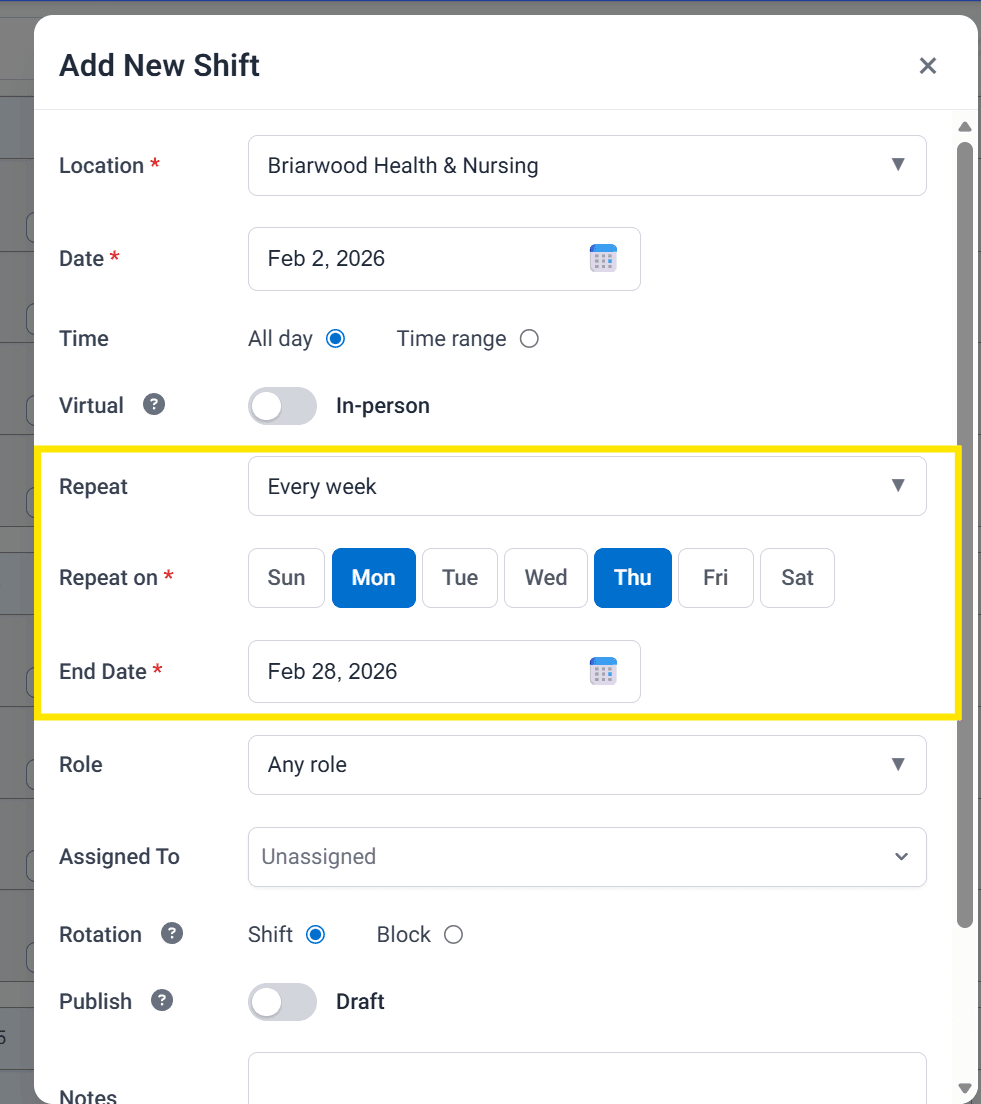
- Repeat on — select the days of the week (e.g., Mon and Thu)
- End Date — choose when the series should stop
Recurring shifts are created as a shift series. They appear on the schedule with a recurring icon on the shift card.
Role
Assign a role requirement to the shift:
- Any role — any provider can be assigned regardless of their role
- Specific role (e.g., Physician, NP/PA) — only providers with this role will be suggested during assignment
Assigned To
Choose which provider to assign to this shift.
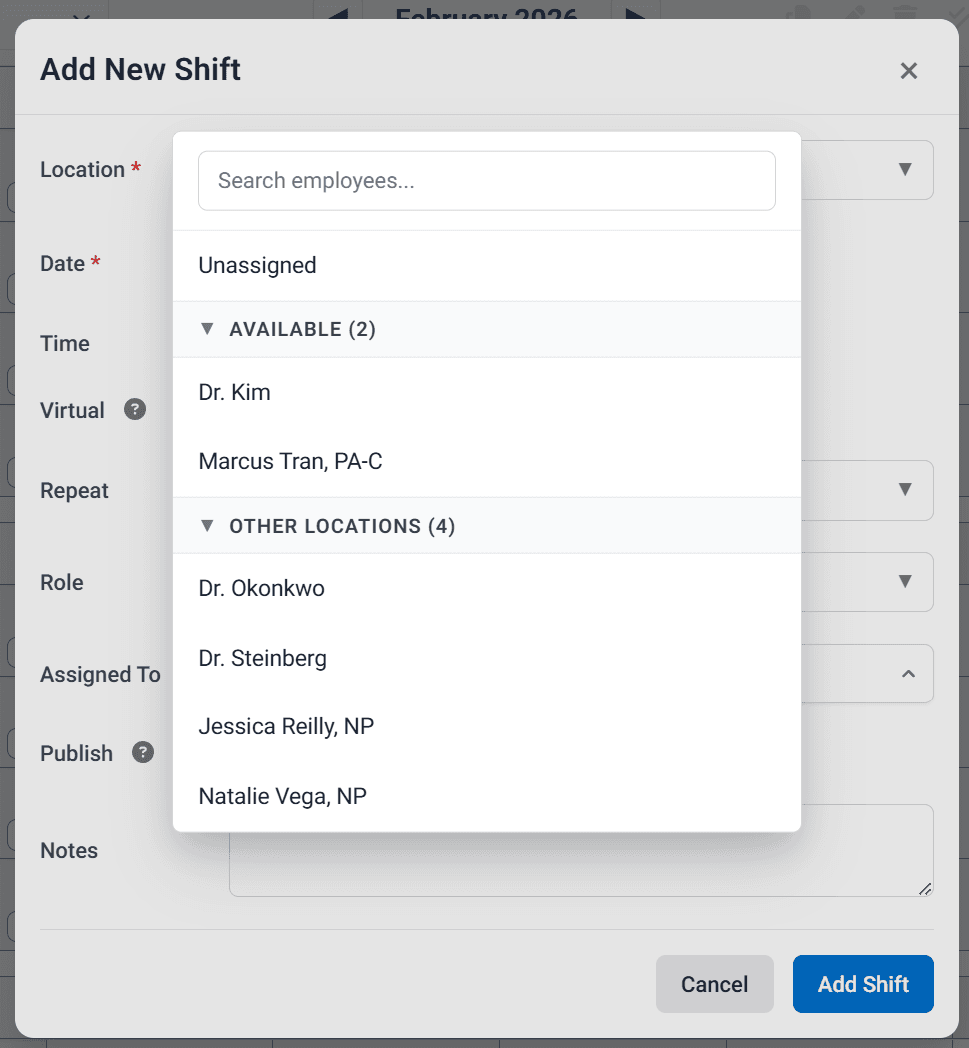
The dropdown is organized into sections:
- Unassigned — leave the shift open (no provider assigned)
- Available — providers who are assigned to work at this location regularly
- Other Locations — providers who don't normally work at this location but can still be assigned manually
You can always assign any provider to any shift, regardless of their location assignment. The grouping is there to help you make informed decisions.
Publish
Toggle between Draft and Published:
- Draft — shift is visible only to admins. Use this while building your schedule.
- Published — shift is visible to all users. Publishing triggers email notifications (if enabled in organization settings).
Notes
Add optional notes visible only to admins. Use this for internal context like "Covering for Dr. Kim" or "Needs to arrive early for handoff."
Creating the Shift
Click Add Shift to create the shift. It will immediately appear on the schedule grid.