
Schedule Views & Filtering
Switch between location and employee views, use quick filters, and create saved view presets for your schedule.
ClinicShifts offers multiple ways to view and filter your schedule, so you can focus on exactly what matters — whether that's a specific location, a particular provider, or only shifts with warnings.
By Location vs. By Employee View
In the top-left corner of the schedule, you'll see a view switcher — two icon buttons that toggle between views:
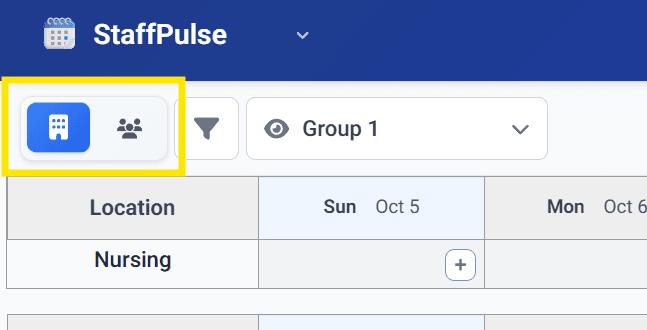
By Location View (Default)
- Left column shows location names
- Shift cards display the assigned employee name
- Best for: building schedules, seeing facility coverage at a glance
By Employee View
- Left column shows employee names
- Shift cards display the location name
- Best for: checking individual provider workloads, finding available providers for replacements
Tip: When you need to find a replacement for a shift, switch to By Employee view. This makes it easy to scan across providers and see who is available on a given date.
Quick Filters
Click the filter icon in the toolbar to reveal quick filter options:
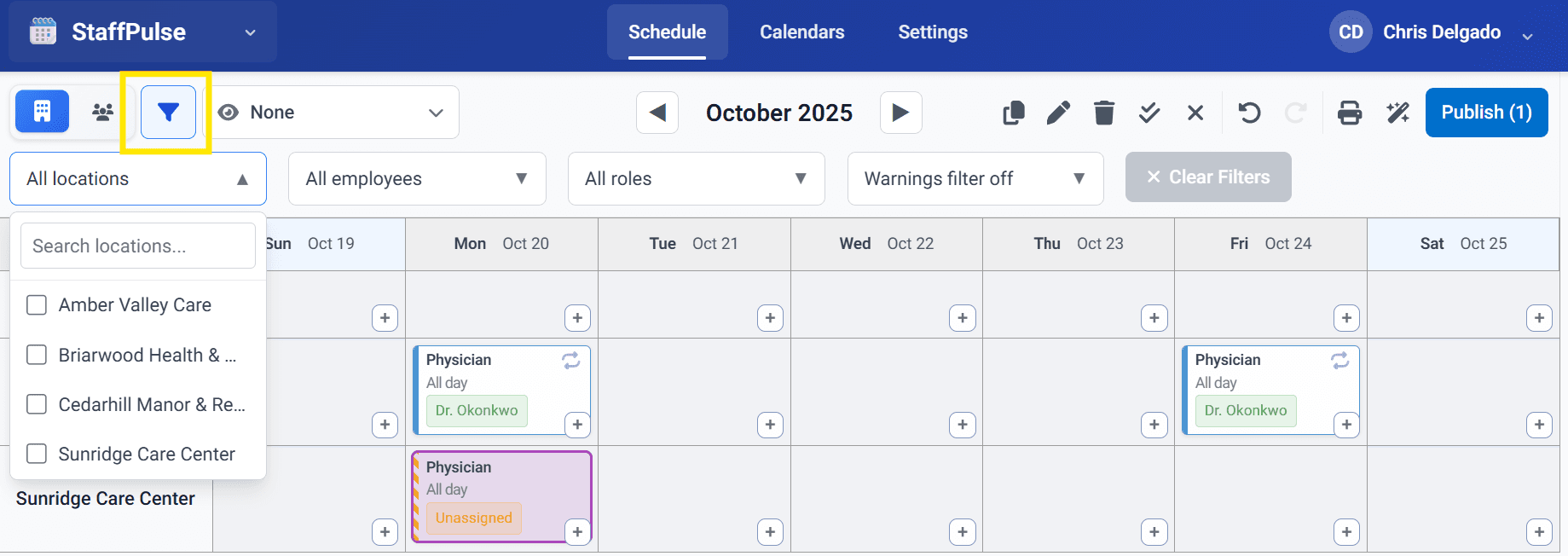
Quick filters let you narrow down the schedule by:
- Locations — show only specific facilities
- Employees — show only specific providers
- Roles — show only shifts requiring a specific role
- Warnings — show only shifts that have warnings (useful for conflict resolution)
Click Clear Filters to remove all active filters and return to the full schedule view.
Quick filters are temporary — they reset when you navigate away. For persistent filter presets, use Saved Views (below).
Saved Views
For larger organizations, switching between the same filter combinations repeatedly gets tedious. Saved Views let you create named filter presets that you can switch between instantly.
The View Selector
Next to the quick filter button, you'll see a dropdown with an eye icon — this is the view selector:
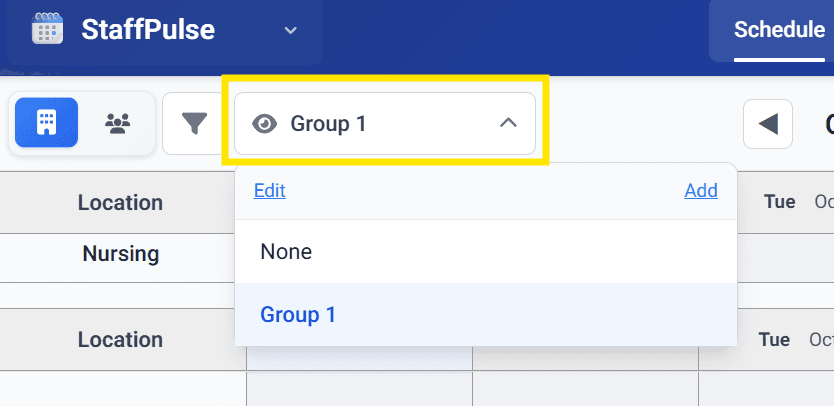
- None — no view filter applied (shows everything)
- Your saved views appear in the dropdown list
Creating a Saved View
- Open the view selector dropdown
- Click Add
- Configure the view:
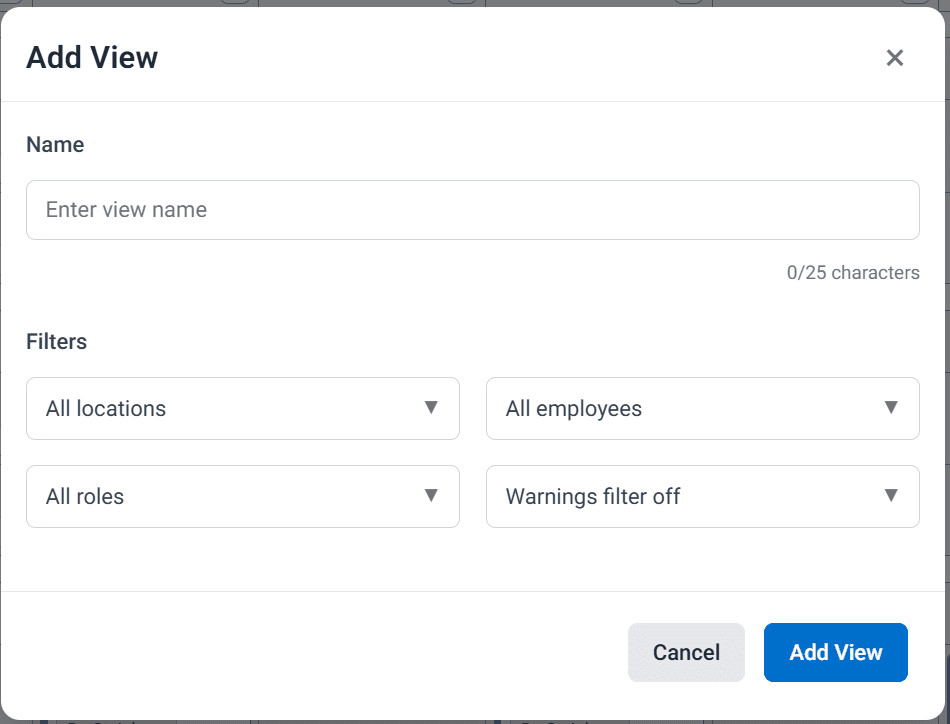
- Name — a descriptive name for this view (e.g., "SNF Locations", "NP Schedule")
- Filters — choose which locations, employees, roles, and warning states to include
- Click Add View to save
Use Cases
- Location groups — create a view for each region or facility group (e.g., "North Facilities", "South Facilities")
- Role-based views — create views filtered by role (e.g., "Physicians Only", "NP/PA Schedule")
- Warning review — create a view that only shows shifts with warnings for quick conflict resolution
You can Edit or delete existing views from the view selector dropdown.