Organization Management
Managing Users
Add team members to your organization, send invitations, and manage user accounts in ClinicShifts Admin.
The Users section in ClinicShifts Admin is where you manage all team members in your organization — adding new employees, sending invitations, and controlling access.
Accessing User Management
- Open the module selector in the top-left corner
- Switch to ClinicShifts Admin
- Click the Users tab in the top navigation
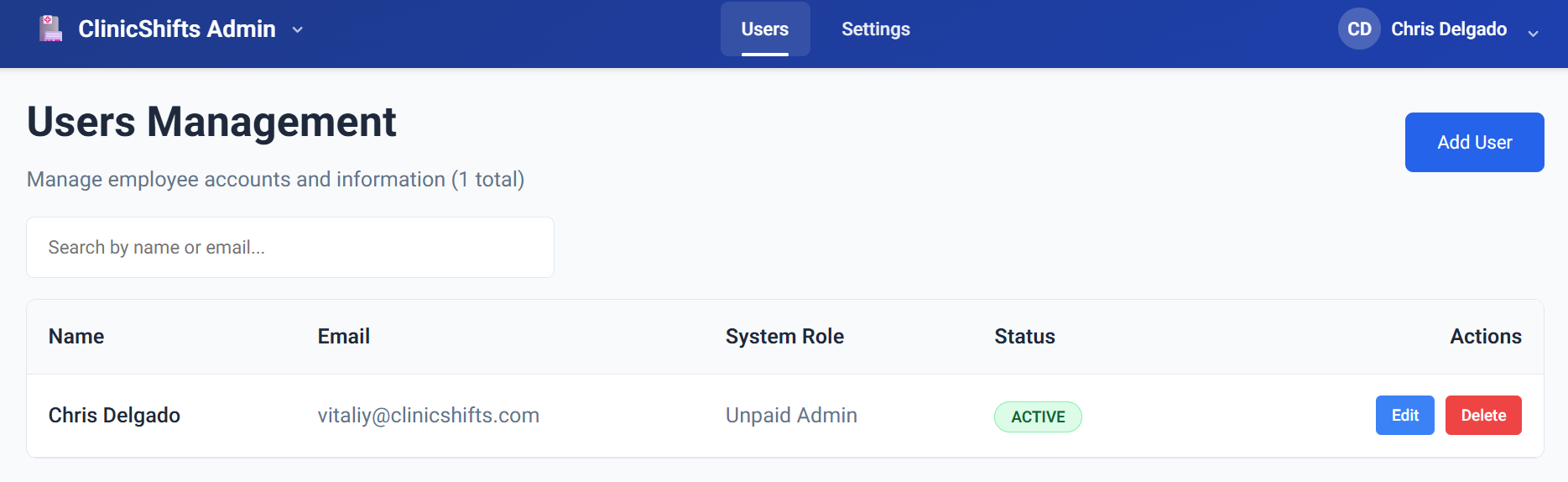
You will see a table listing all users in your organization with their name, email, system role, status, and available actions.
Adding a New Employee
- Click the Add User button in the top-right corner
- Fill in the employee details:
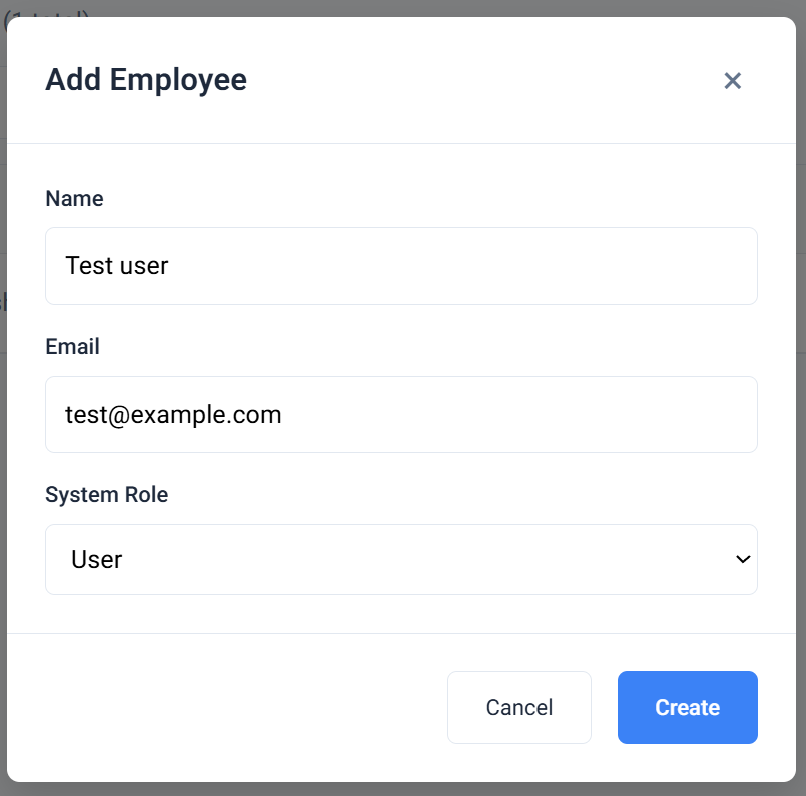
- Name — the employee's full name
- Email — their email address (used for login and notifications)
- System Role — choose from:
- User — view-only access (for providers who only need to see their schedule)
- Paid Admin — full admin access, counts as a paid seat (for admins who are also providers)
- Unpaid Admin — full admin access, does not count as a paid seat (for non-provider administrators)
- Click Create to add the employee
For a detailed explanation of each role and its permissions, see User Roles & Permissions.
Inviting Employees
After adding an employee, their status will show as NOT-INVITED. They cannot log in until you send them an invitation.
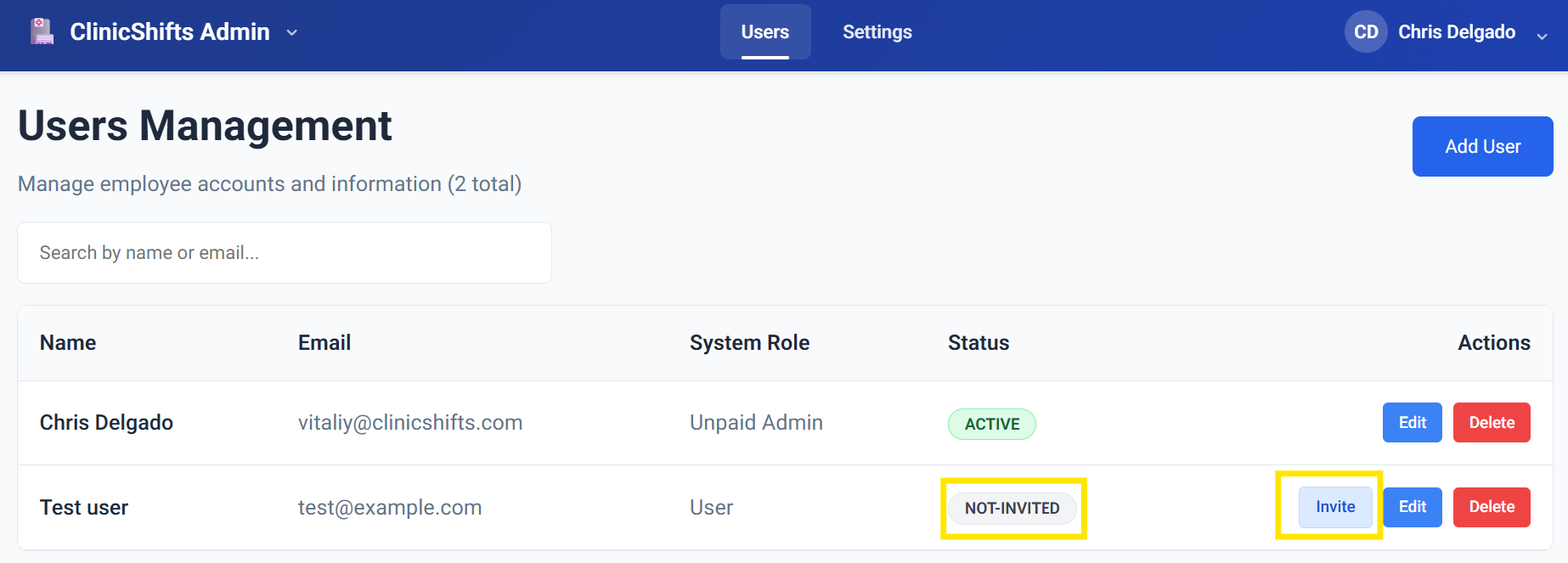
To invite an employee:
- Find the employee in the users table
- Click the Invite button in the Actions column
- The system will send them an email with instructions to join your organization
Understanding User Statuses
| Status | Meaning |
|---|---|
| NOT-INVITED | Employee has been added but no invitation email has been sent yet |
| INVITED | At least one invitation email has been sent, but the employee hasn't logged in yet |
| ACTIVE | Employee has logged in at least once and their account is active |
Editing and Deleting Users
- Edit — click to modify an employee's name, email, or system role
- Delete — permanently remove the employee from your organization
You can also use the search bar at the top to quickly find employees by name or email.